

The mobile app for MapChart has been live for the past few days on the Play Store and the App Store. Long-time fans as well as new users have already downloaded it and are making maps straight from their mobile device.
It’s a fact that many users want a way to save their maps and come back to them later when they find more time or when they want to revisit their data and make some changes.
That’s what the save/upload map configuration feature is all about. It has been one of the main features of the website for some time now, and has been used by thousands of people to save and recreate their favorite maps.
Thus, I am pleased to say that this functionality is indeed available in the app!
Not only can you save and keep your map configurations inside the app (without the need to download a .txt file), but you can also import your saved configurations from the website and vice versa.
This way you can use MapChart effortlessly, both with your PC/Mac and your mobile device, without having to redo your maps each time.
Let’s see a quick tutorial of importing/exporting a map configuration from the website to the app and the reverse.
Moving a map’s settings from the website to the app.
This is a simple map that I created with the website’s simple World map template. It depicts the market share of Android/iOS devices by country in 2019.

Let’s say that I need to recreate the same map in the MapChart mobile app on my phone.
Instead of redoing it from scratch, I can easily import the map settings from the website to the app with some simple steps:
Method 1: Scanning a QR code
This is the quickest way to move a map from the website to the app:
- Make sure you have the latest app version installed (v5.9.0 and later).
- After editing your map, go to Step 3 > Save/Load Map Configuration.

- In the Export to app tab, click the Generate QR code button.

- Use one of these methods to scan the QR code:
- Open your device’s camera and point it at the QR code.
- Or, in the app, go to My Maps and tap the QR icon button in the top-right corner.

- The map will automatically load in the app.
Here is a short video showing the process:
Method 2: With a text file
You can also use the text file method to transfer your map to the app:
- On the website, after editing your map, go to Step 3 > Save/Load Map Configuration.
- In the Save/Load text file tab, hit the Save Configuration button to download a small text (.txt) file with your map’s settings.

- Send the text file to your phone, via USB transfer, iCloud, Dropbox, Google Drive, Bluetooth, Airdrop, etc.




- By default, the app tries to guess the map page and the config’s name (from the name of the text file), but you can always override it.
- The map will be saved to My Maps on your device.
Load the imported map and continue editing it
Now you can go to the respective map screen in the app and use Actions > Load to select and restore your imported map:
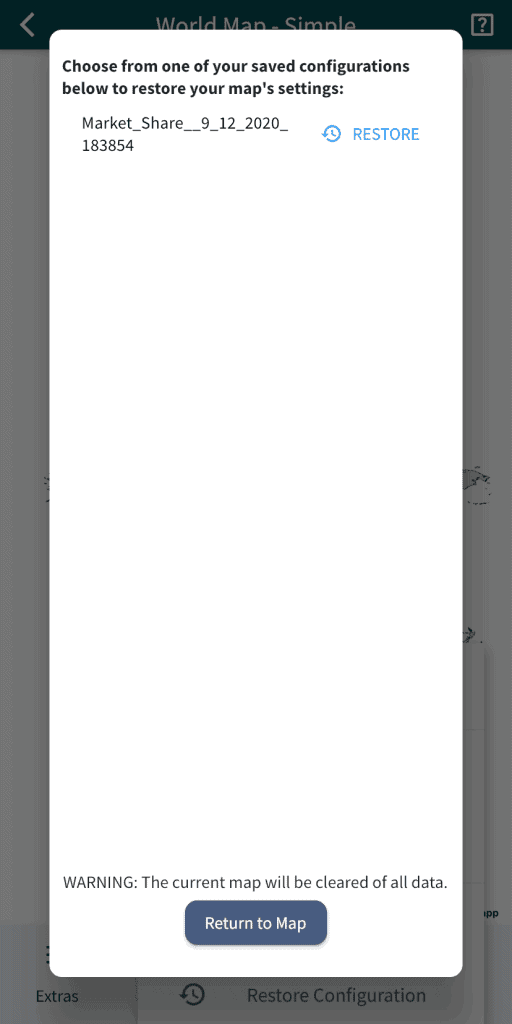
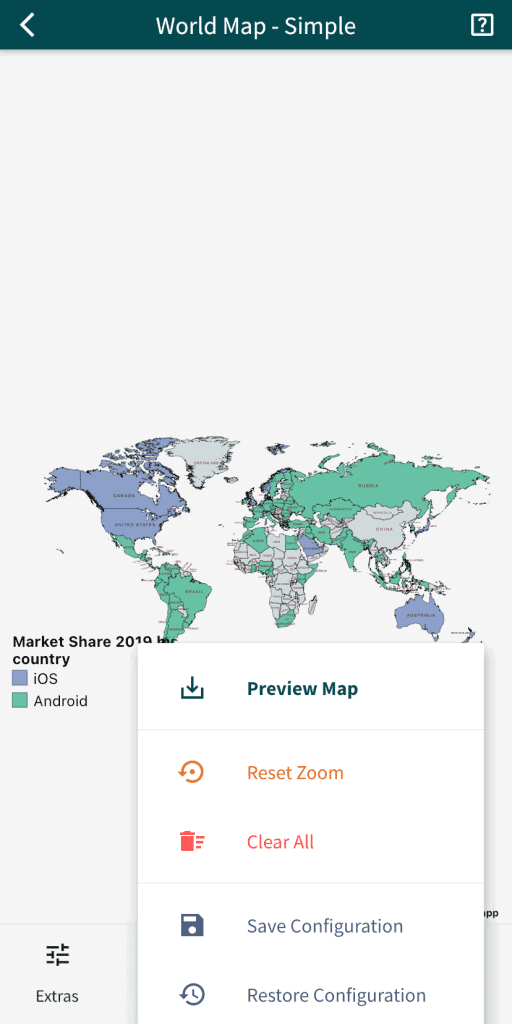
Tah-dah! You can continue editing your map, change its legend, colors, etc. as you would do on the website.

Using the mobile app also has a bonus, as you don’t need to keep text files with my map settings around. The map configs are saved in the device’s memory, with a limit of 25 free configs, which is more than enough for most applications.
If you ever find yourself needing to save more map configurations in the app, you can always opt for a Premium version which unlocks unlimited saved map configurations!
Now let’s take a look at the reverse process.
Moving a map’s settings from the app to the website.
I will be using the below USA states map, which I have been editing with the MapChart app on my iPhone. It shows the US divided into its geographical regions:

1. Save the map’s configuration.
From the map editor, I use Actions > Save Configuration to save the map settings on my device.

2. Export the map configuration in a .txt file.
From the main menu, I go to My Map Configurations and use the download arrow icon to export the US regions config. This opens a dialog that lets me save the generated .txt file on my chosen folder.


3. Send the mapChartSave.txt file to my desktop/laptop.
As before, I send the text file with the map settings to my PC or Mac via any transfer method that’s easier for me.
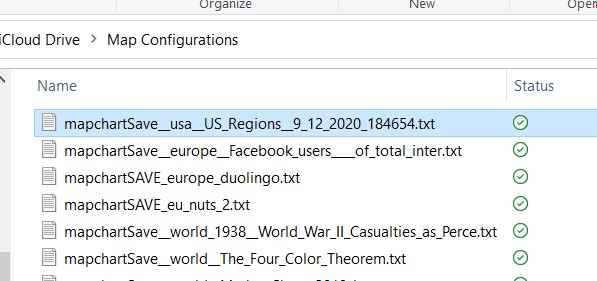
4. Go to the corresponding map page of the website and resume my map.
Now I can go to the USA states map page on the website. I use the blue Save/Upload Map configuration button to open a dialog that lets me paste the contents of the file.
Hitting the Upload Map Configuration imports the settings in the website’s USA states map.

Done! Now my map is restored and I can continue with my edits:

With a few simple steps we saw how the MapChart website and mobile app can “talk” to each other!
Use this simple guide to move your map settings from the website to the app and vice versa easily. If you encounter any issue, please let me know through the Feedback page!